How to make a logo stamp brush in Procreate
A quick and easy way to mark your work with your logo and help keep it safe online!

If you share your work online, chances are you like to place your name or logo on your art. (And if you don't do this yet, I'd highly recommend it!!)
Below you can see a screenshot of my instagram feed and you can see I mark each post with my logo, usually in the bottom left corner.

In Procreate, there’s a really simple way to make a logo stamp brush so you can always have your signature ready to go in just a tap. No more resizing, re-importing, or fiddling with placement every time.
Why use a logo stamp brush in Procreate?
First and foremost, a stamp brush is accessed quickly and can save you a lot of time when you are preparing work for Instagram, Pinterest or your website.
It also means that your logo stays consistent over the whole body of your work.
Secondly, it’s a really handy way to watermark your work. Nothing can fully prevent artwork from being copied online, but adding your logo makes it far less appealing (and more difficult) for someone to screen shot it and pass it off as their own.
And finally, it helps ensure your name stays attached to your designs when they’re shared online. Even if it has been shared multiple times across different platforms and the original link has been detached, people can still see who the artist is and look you up to find out more!
How to make a logo stamp brush
Firstly create a new canvas in Procreate at 12x12 inches at 300 DPI.
Using a solid brush (like a monoline) in pure black, draw your name or logo on the canvas. You could use the drawing guide to help you here, or trace it from a template.

The more of the canvas you take up the better, but don’t scale it up if it's too small as it will make your stamp blurry. (It’s always best to redraw something if it’s too small in Procreate.)
Using snapping and magnetics to help you, centre the logo once you have finished so it is in the middle of the canvas.
When you are happy with how your logo or signature is looking, swipe down with three fingers and tap copy all.
Go to your brush library and tap the plus in the top right and then tap create new brush.
Select the shape section from the left menu and tap edit next to Shape Source.
Tap import and then paste. You’ll notice now that your logo comes in black with a white background as you drew it on the canvas. But for it to work properly, the logo needs to be in white and the background black, so just tap the logo with two fingers to invert it. Click the blue tick in the top right.
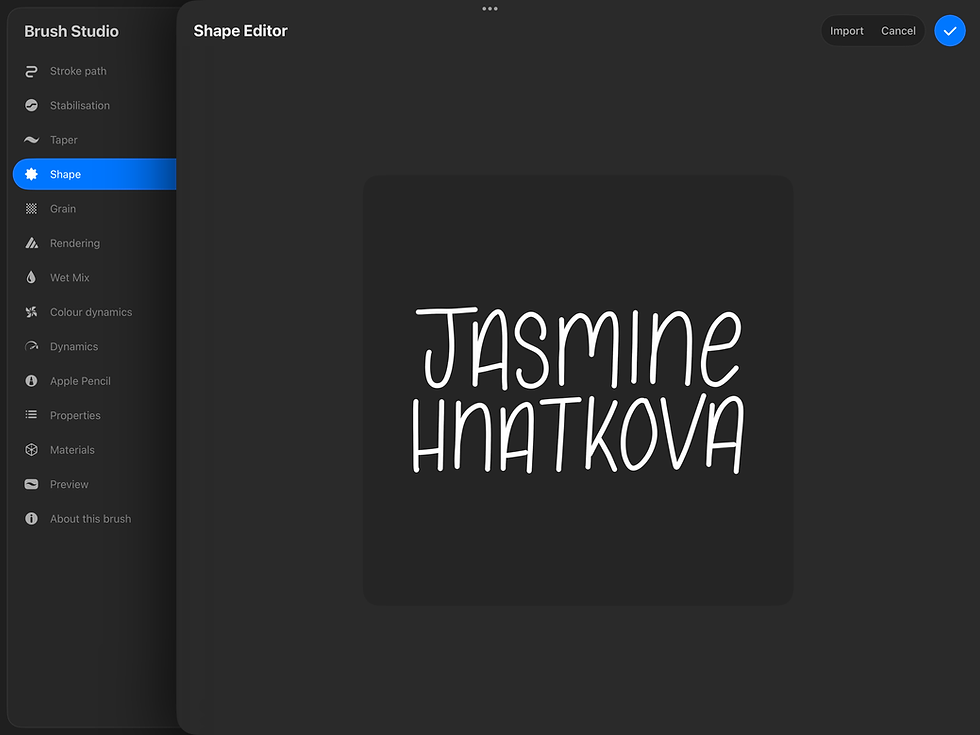
Now go to Stroke Path on the left menu and set the spacing to max. This will make sure it doesn’t keep repeating itself in a line.
In the Properties tab you can also adjust the maximum and minimum sizes so that you can have some control over how big or small you want the logo to come out when you are using it in Procreate.
In the Preview tab select Use Stamp Preview so it shows up correctly in your brush library.

Now you can click the blue tick again and try out your new brush!
Remember, just as with any brush, you can adjust the size and opacity from the sliders at the side and the colour as usual.
If you are placing it over a pattern, as I am always doing, you may want to add a solid rectangle behind it so that it is more visible.
Alternatively, you might like the way it subtly watermarks your work without drawing too much attention!
If you're keen to make more stamps...
This method doesn't just work for logos, you can make all kinds of stamps using this exact method!
If there's a certain motif you always need or always have to look up to trace, why not make a stamp brush, so you have it at your fingertips, ready to go?
I have a growing library of stamp brushes myself, especially florals that I use as a base when sketching. If you’d like to try this out, I’ve put together a free pack you can download and try out yourself by clicking the image below.

If you're new to Procreate or surface pattern design and want to find out more, I have a beginner friendly Procreate Patterns Class you might be interested in. Click on the image below to find out more.


Such a great idea, thanks Jasmine!